Prerequisites
- OpenAI Codex CLI (latest version)
- An AutoXPP API key for premium skills — get one at xplusplus.ai/autoxpp
Using Claude Code instead? See the Claude Code installation guide.
Open the Plugin Manager
Type /plugins in Codex to open the plugin browser.
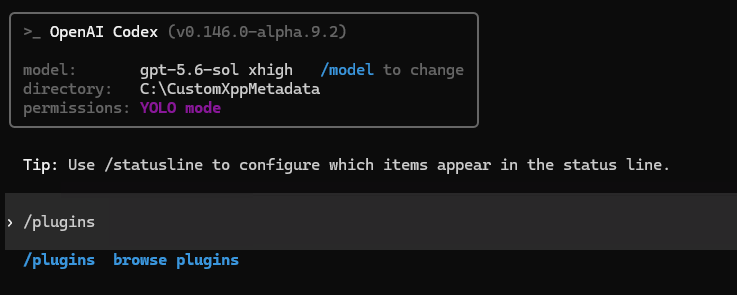
Type /plugins to open the plugin browser
Add the AutoXPP Marketplace
In the Plugins screen, select [Add Marketplace]. In the dialog, enter the marketplace identifier and press Enter:
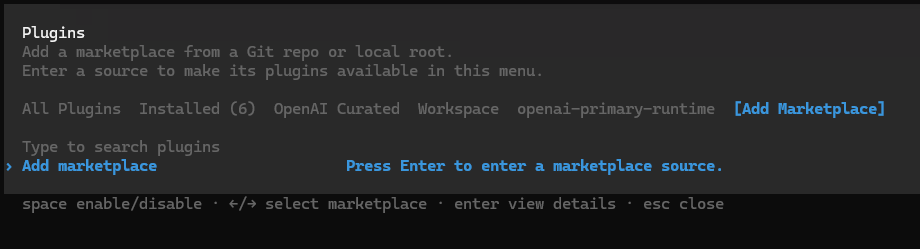
Select Add Marketplace from the Plugins screen
Enter the Marketplace Identifier
In the "Add marketplace" prompt, type the identifier and press Enter:
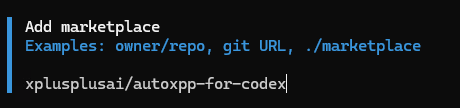
Enter the AutoXPP for Codex marketplace identifier
Find and Install AutoXPP
Navigate to the XPLUSPLUS.AI tab. You'll see AutoXPP listed as available. Select it to view plugin details.

AutoXPP appears under the XPLUSPLUS.AI marketplace tab
Install the Plugin
On the plugin details screen, select Install plugin. You can review the included skills, hooks, and apps before installing.
After installation, restart your Codex session for the plugin to take effect.

Review plugin details and select Install plugin
Configure Your API Key
After installation, run the setup skill to connect your API key:
Follow the prompts to enter your ak_... key. If you don't have one yet, visit xplusplus.ai/autoxpp to subscribe.

Setting up your API key
Support
Troubleshooting
| Problem | Fix |
|---|---|
| Plugin not appearing after adding marketplace | Make sure you entered xplusplusai/autoxpp-for-codex exactly. Check the XPLUSPLUS.AI tab in /plugins. |
| MCP connection error after key setup | Restart Codex so the MCP server connects, then run $autoxpp:autoxpp-setup-api-key again to validate. |
| Skills show "locked" or "requires upgrade" | Your API key may be for the free tier. Visit xplusplus.ai/autoxpp to upgrade. |
| Free skills not working | Free skills (browser-v2, azure-devops, sql-jit, ude-switch) don't need an API key. Make sure the plugin itself is installed and enabled. |
Get Started
Ready to Build?
Free skills work without an API key. Premium skills require an active AutoXPP Pro subscription.